
Placing an order
Find what you want, add it to your cart and check out — with or without an account.
Find what you want
- Use Shop All or Categories at the top of the page, or the search icon to look for a product by name.
- Choose your pickup location from the button in the header — what’s in stock can differ from one location to another.
- Open a product to see its photos, price and options.
Add it to your cart
- Pick an option if the product has more than one, and set the quantity with the − and + buttons.
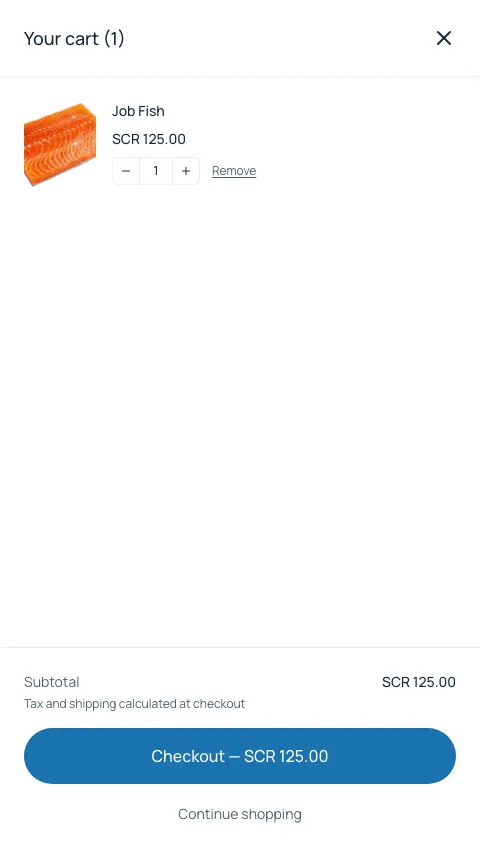
- Press Add to cart. Your cart opens on the side of the page.
- In the cart you can change quantities or remove items. Close it to keep shopping.
If something sells out
Fresh stock moves fast. If an item in your cart sells out, or there are fewer left than you asked for, the cart and checkout tell you with Out of stock or Only N left.
Press Remove, or Change to N to take what’s left. You can check out as soon as nothing is flagged.
Check out
- Press Checkout in your cart.
- Enter your email address — your confirmation is sent there.
- Choose Pick up or Delivery (see the Pickup and Delivery pages).
- Add a gift card or promo code in the order summary if you have one.
- Press Place order and pay by card on Mastercard’s secure payment page.

After you order
- You see a confirmation page with your order number, and we email you a confirmation.
- You can create an account from the confirmation page to keep track of the order (see Your account).